
Docs
How to Uninstall McAfee, Avast Free, or AVG Free and Use Microsoft Defender
Quick answer
To remove preinstalled McAfee on Windows 11, open Start > All apps, right-click McAfee LiveSafe or McAfee Total Protection, choose Uninstall, and restart. If normal removal fails, use McAfee’s Consumer Product Removal tool (MCPR) and restart again. Open Windows Security > Settings > Manage providers > Antivirus. Confirm Microsoft Defender Antivirus is turned on and Real-time protection is On under Virus & threat protection > Manage settings. McAfee’s standard removal and fallback · Microsoft’s provider check
How-to for Windows 11 users replacing a trial or free antivirus
Choose the antivirus installed on your PC. McAfee LiveSafe or Total Protection · Avast Free Antivirus · AVG AntiVirus FREE
How do I uninstall preinstalled McAfee?
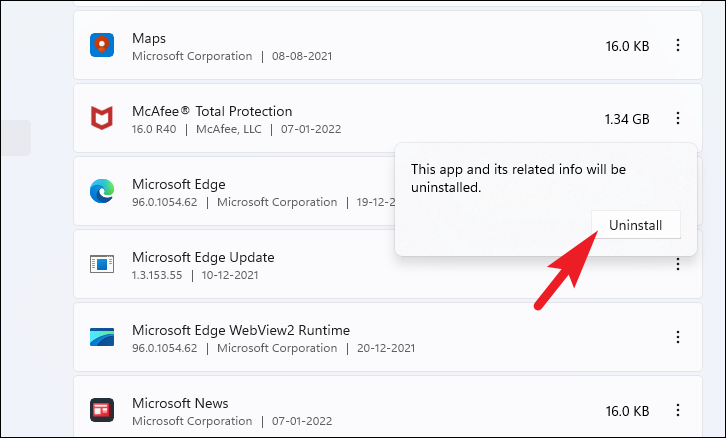
- Search Settings > Apps > Installed apps for McAfee. Match the antivirus name on your PC, such as LiveSafe or Total Protection. Choose … > Uninstall, follow setup, and restart. The Start menu route above opens the same removal workflow. Windows 11 uninstall options · McAfee’s Windows procedure
- If the consumer antivirus fails to uninstall, get a fresh MCPR from McAfee Support. Run
MCPR.exe, follow its prompts, and restart once it finishes. If the tool reports an error, save the message for McAfee Support. McAfee’s MCPR tool · McAfee Support’s MCPR walkthrough - After restarting, expand Antivirus in Windows Security > Settings > Manage providers. Confirm Microsoft Defender Antivirus is turned on, then check that Real-time protection is On in Virus & threat protection > Manage settings. Microsoft’s protection settings
Why am I still seeing McAfee notifications?
Check the sender and the active antivirus provider. WebAdvisor by McAfee is a separate product with its own entry in Installed apps. If you want to remove it too, select that entry and choose Uninstall. McAfee’s WebAdvisor removal guide
A website can send a McAfee-branded notification through the browser even when Defender is the active antivirus. In Microsoft Edge, open Settings > Privacy, search, and services > Site permissions > All sites, select the sending site, and block Notifications. Microsoft’s website notification instructions
How do I uninstall Avast Free Antivirus?
On Windows 11, select Settings > Apps > Installed apps > Avast Free Antivirus > … > Uninstall and restart after setup. If setup stalls, use Avast’s Avast Uninstall Tool (avastclear.exe) in Safe Mode. Back in regular Windows, Windows Security > Settings > Manage providers > Antivirus should show Microsoft Defender Antivirus turned on, with Real-time protection on under Virus & threat protection > Manage settings. Avast’s uninstall utility and filename
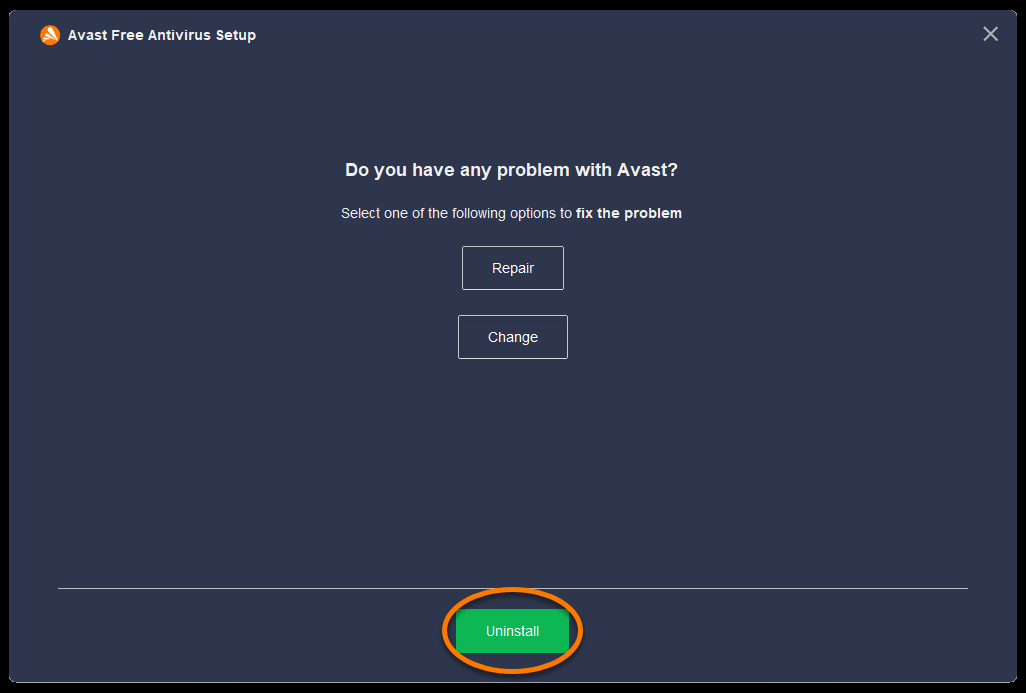
- In Avast Free Antivirus Setup, select Uninstall below Repair and Change. Skip the optional survey if offered, confirm removal, and select Restart computer. Older versions of Windows 11 call Installed apps Apps & features. Avast uninstall instructions
- If setup fails, run
avastclear.exeas administrator. On Reboot to safe mode, select Reboot and confirm the restart. In the tool, select Remove only > Remove, confirm Uninstall, then restart the computer into regular Windows. Avast’s Safe Mode procedure - Check the active provider and real-time protection after that last restart. If Avast is still active, record its status and the tool’s result before contacting Avast Support.
How do I uninstall AVG AntiVirus FREE?
On Windows 11, select Settings > Apps > Installed apps > AVG AntiVirus FREE > … > Uninstall and restart after setup. If setup fails, use the AVG Uninstall Tool (avg_av_clear.exe) in Safe Mode. After restarting normally, confirm Microsoft Defender Antivirus is turned on in Windows Security > Settings > Manage providers > Antivirus and Real-time protection is on under Virus & threat protection > Manage settings. AVG’s uninstall utility and filename
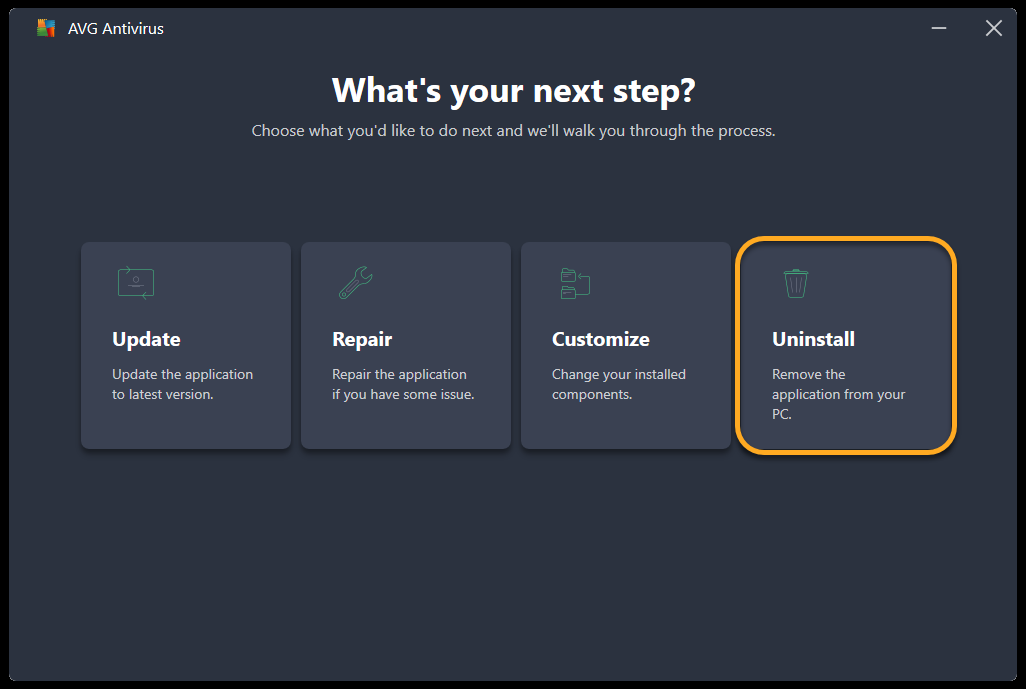
- In AVG AntiVirus Setup, select the Uninstall tile. Confirm removal and choose Restart now. AVG uninstall instructions
- If standard removal fails, run
avg_av_clear.exeas administrator. Select Reboot under Reboot to safe mode and confirm. Choose Remove only > Remove, confirm Uninstall, and finish with Restart now. AVG’s Safe Mode instructions - Recheck Defender’s provider name and real-time protection in regular Windows. If AVG is still active, record what AVG Setup or the removal tool reported.
Why is Defender still off after I removed the antivirus?
Check the active provider after the final restart. If Windows still identifies McAfee, Avast, or AVG as active, return to that product’s cleanup steps. If the old provider is gone but Defender is off or the setting is managed, record the provider name and Defender’s running mode before changing anything else. The Windows 11 switch guide gives the read-only command and expected results. Microsoft’s explanation of automatic reactivation
Screenshot sources
- McAfee Total Protection uninstall prompt — Softwareg.com.au
- Avast Free Antivirus Setup — Avast Support
- AVG AntiVirus Setup — AVG Support