
Docs
How to Uninstall Norton 360 and Switch to Microsoft Defender
Quick answer
On Windows 11, open Settings > Apps > Installed apps > Norton 360 > … > Uninstall, finish setup, and restart. If uninstall fails, use Norton 360 Remover > Remove only > Remove and restart again. In Windows Security > Settings > Manage providers > Antivirus, confirm Microsoft Defender Antivirus is turned on. In Virus & threat protection > Manage settings, confirm Real-time protection is On. Norton’s removal instructions · Microsoft’s provider check
How-to for Windows 11 users removing Norton 360
Norton provides two ways to start its standard uninstaller. Use the removal tool if setup reports an error or the normal uninstall leaves Norton active.
How do I remove Norton 360 from Windows 11?
- Close Norton. Open Start > Settings > Apps > Installed apps, find Norton 360, open its three-dot menu, and select Uninstall. Microsoft’s Windows 11 uninstall options
- If you need the Programs and Features route, press Win + R, enter
appwiz.cpl, and press Enter. Select Norton 360 and choose Uninstall or Remove. From either entry point, follow the Norton prompts, close your other programs, and restart the PC. Norton’s standard Windows procedure - After signing back in, open Windows Security > Settings > Manage providers > Antivirus and read the name of the active product. When it shows Microsoft Defender Antivirus turned on, open Virus & threat protection > Manage settings and check Real-time protection. Microsoft’s real-time protection settings
When should I choose Remove only in Norton 360 Remover?
Choose Remove only when the standard uninstall failed and you want Defender to take over. The other removal-and-reinstall option is for people who plan to keep Norton. Norton 360 Remover instructions and download
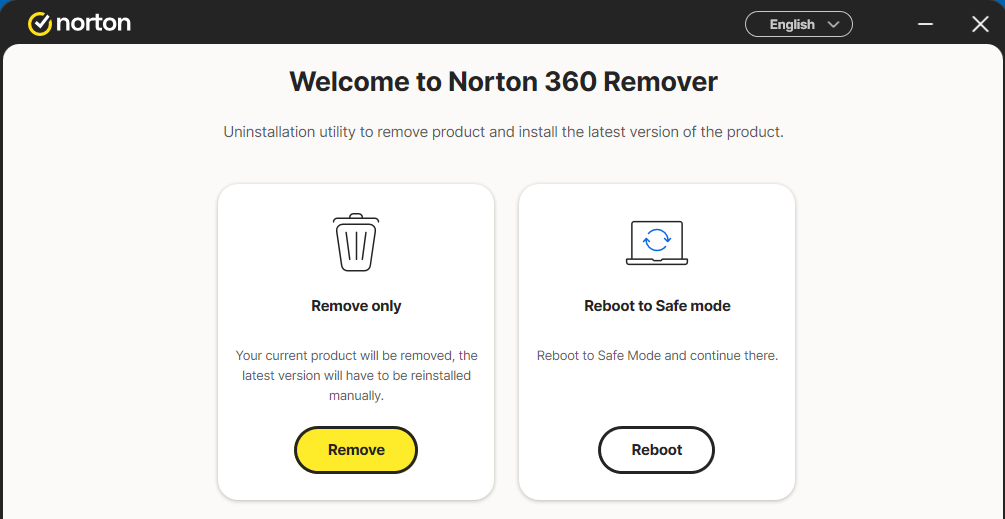
- Download Norton 360 Remover from Norton Support and open it. On the Remove only tile, select Remove.
- Select Uninstall to confirm. When removal finishes, select Restart Now.
- If the remover encounters errors, its Reboot to Safe Mode option restarts the PC so you can run Remove only there. Finish removal, restart into regular Windows, and repeat both protection checks. Norton’s Safe Mode procedure
Why does Windows Security still show Norton?
Check whether Windows actually says Norton is turned on under Manage providers > Antivirus. An unfinished restart or incomplete uninstall is a reason to check again. If Norton remains active after a normal restart, run the official remover, restart, and recheck. If removal succeeded but Defender is still off, record the provider and use the Windows 11 guide’s read-only Defender status check. Norton’s guidance for a failed uninstall
What happens to Norton Private Browser and automatic renewal?
Norton Private Browser has its own uninstall procedure. A remaining browser icon tells you nothing about which antivirus Windows is using. Norton Private Browser FAQ
Your Norton subscription continues after you remove the software. To stop future renewal, follow the cancellation instructions for the account or store where you bought it. Norton’s subscription and renewal guide
Screenshot sources
- Norton 360 Remover on Windows 10 — Norton Community